
Part One: Set Up Credentials (Access to ManuMax Security)
-
Invitation Email
- You’ll receive an invite from MASDEVOPS with a password reset link.
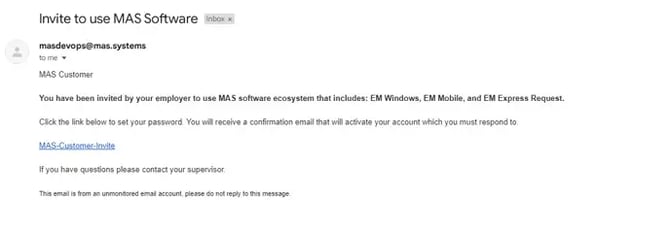
- You’ll receive an invite from MASDEVOPS with a password reset link.
-
Set Up Your Password
- Click the password reset link and follow these requirements:
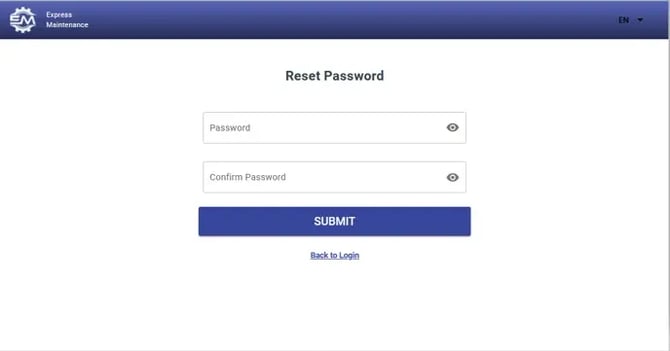
- Minimum 8 characters
- Uppercase and lowercase letters
- At least one number
- One special character (Shift + 1–8 on the keyboard, such as !, @, #).
- Contact us if you encounter any issues with the link or password criteria.
- Click the password reset link and follow these requirements:
-
Confirmation Link
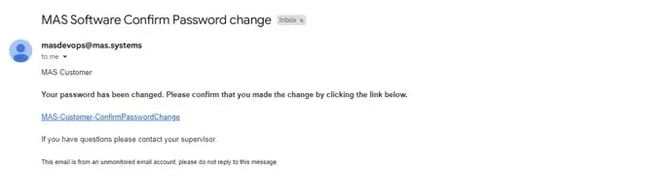
- After setting your password, you’ll receive a confirmation email to verify your login. Click on the Link.
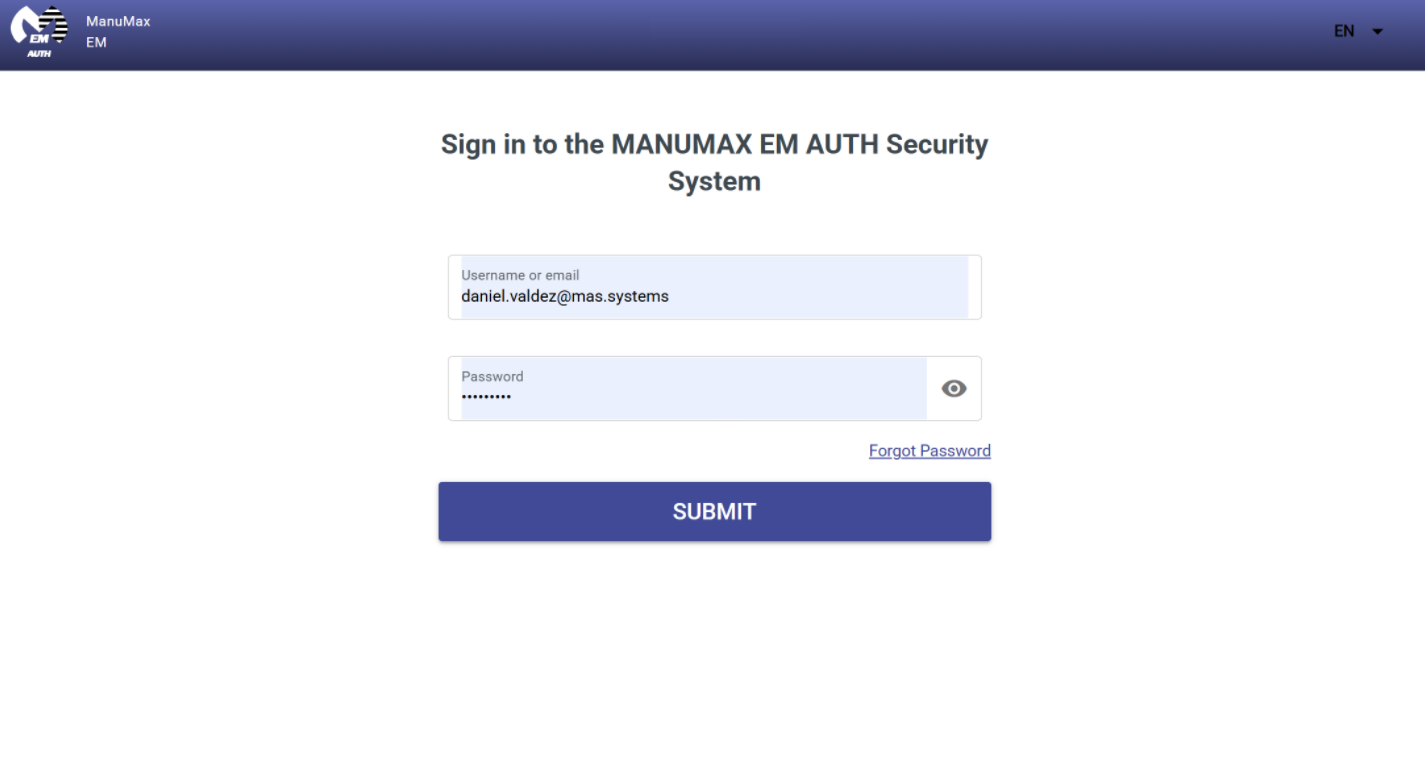
- Log in to ManuMax Security to confirm access and set up basic profile information. (Note: This is not the EM application itself.)
For Mobile and WRO Users: Once you complete Part One, please skip Part Two and proceed directly to Part Three for your specific setup instructions.
- After setting your password, you’ll receive a confirmation email to verify your login. Click on the Link.
Part Two: Set Up Cloud Credentials (Cloud Access)
If you’re a Mobile or WRO user, please skip this section and go to Part Three.
-
Once you have received your Cloud Credentials and Temporary password follow the below steps
-
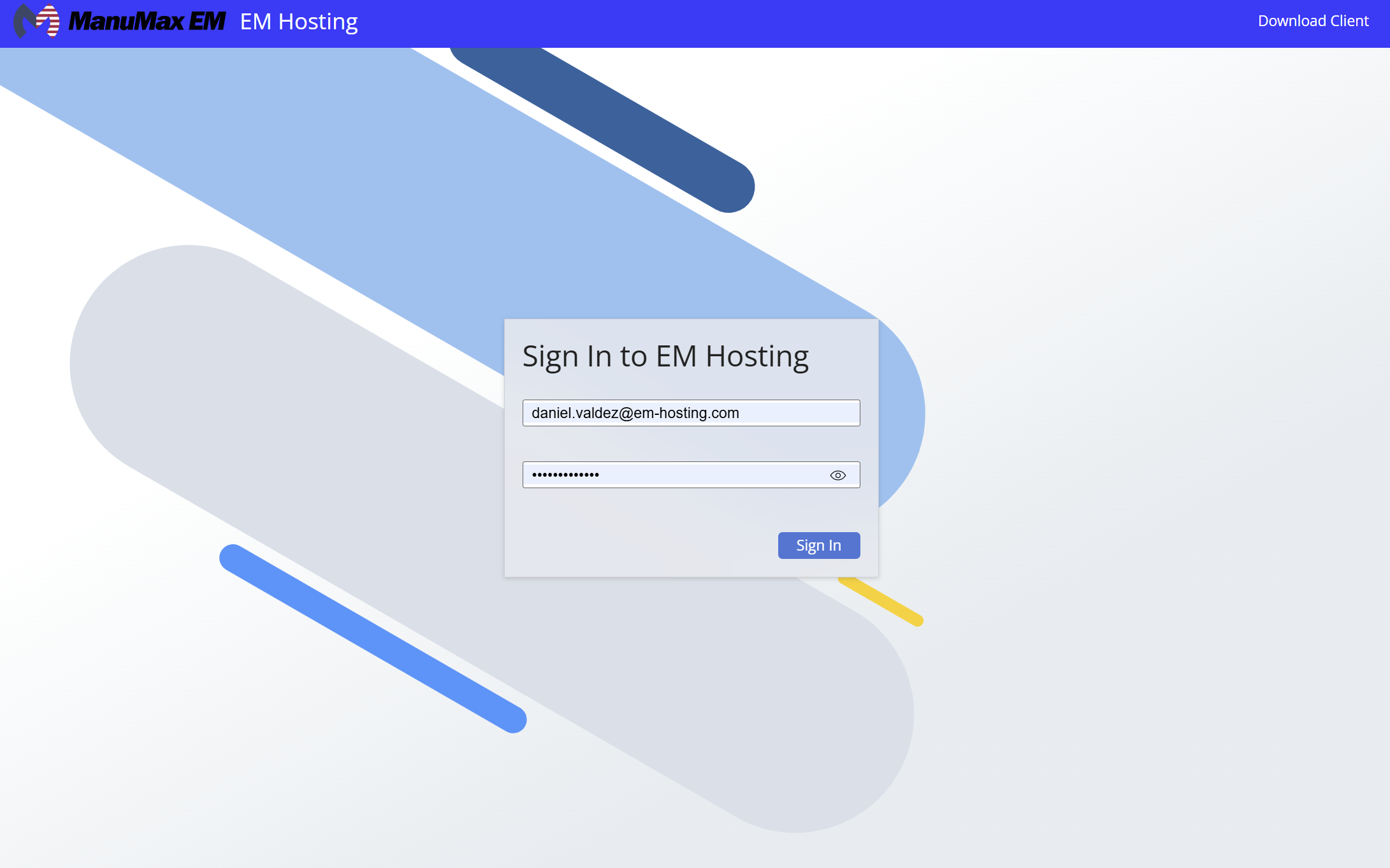
Go to em-hosting.com and log in with the following format:
- Username: firstname.lastname@em-hosting.com (e.g., Peter Parker would be peter.parker@em-hosting.com)
- Temporary Password: Use the temporary password provided, then reset your password. (For ease, you may want to use the same password as for EM Security.)
-
-
Access the Cloud Environment
- Once logged into EM Hosting, click the ManuMax EM icon
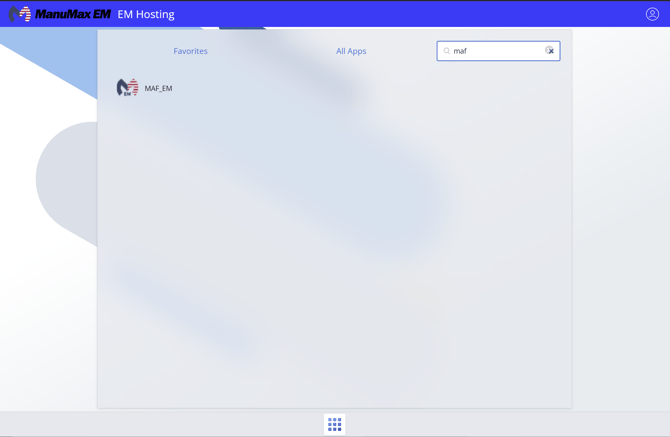 log in with your email and password to access ManuMax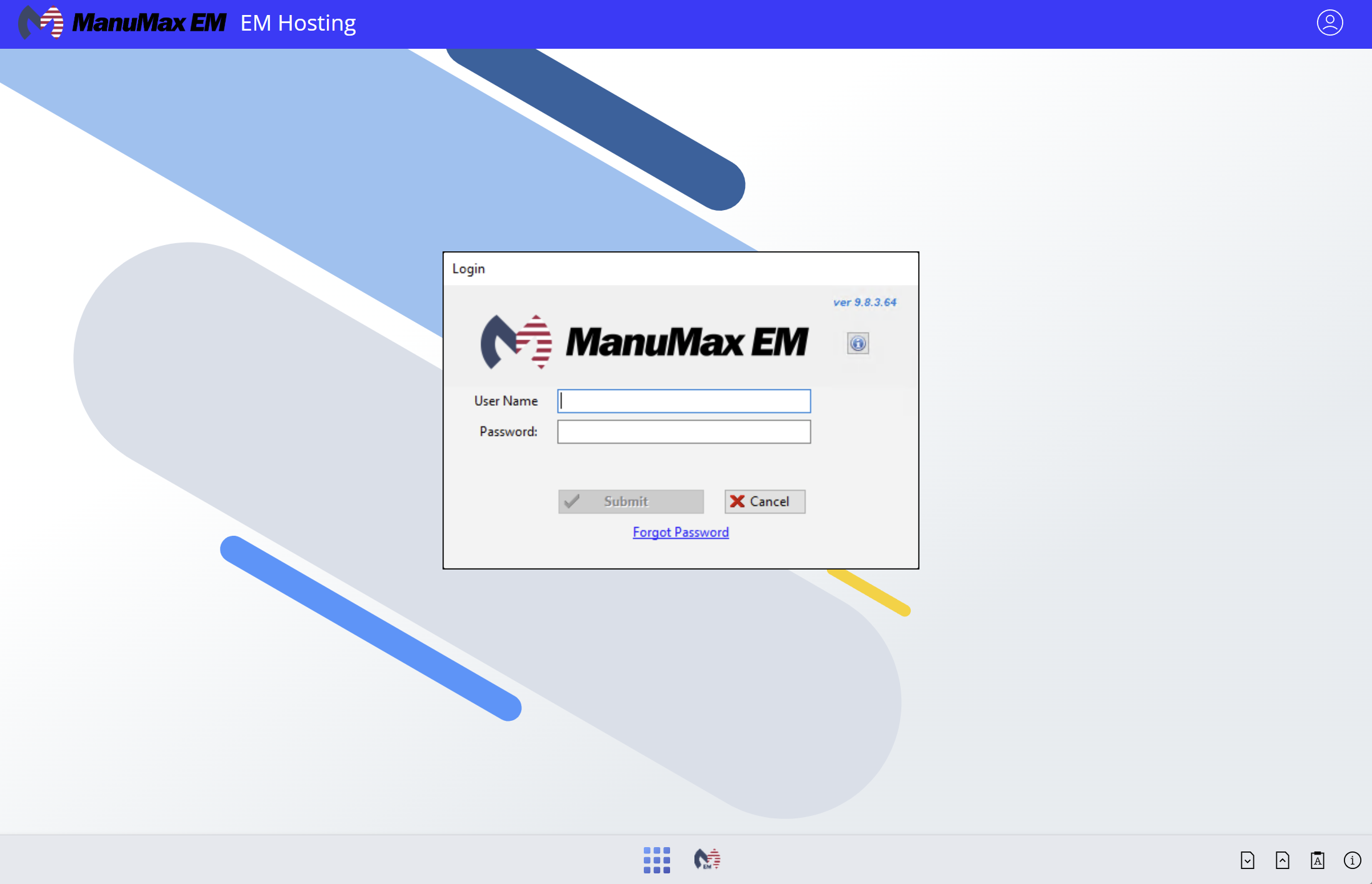
- Once logged into EM Hosting, click the ManuMax EM icon
Part Three: ManuMax Mobile and WRO User Setup
Before proceeding, please confirm that your administrator has granted you access as a mobile app user. This step is crucial to avoid any potential issues during setup.
For EMM Users
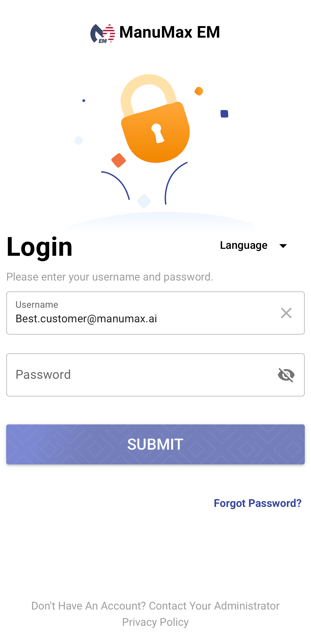
- Go to your operating system’s app store (Apple App Store or Google Play Store) and download the ManuMax Mobile app.
- Log in to the app with your email and password.
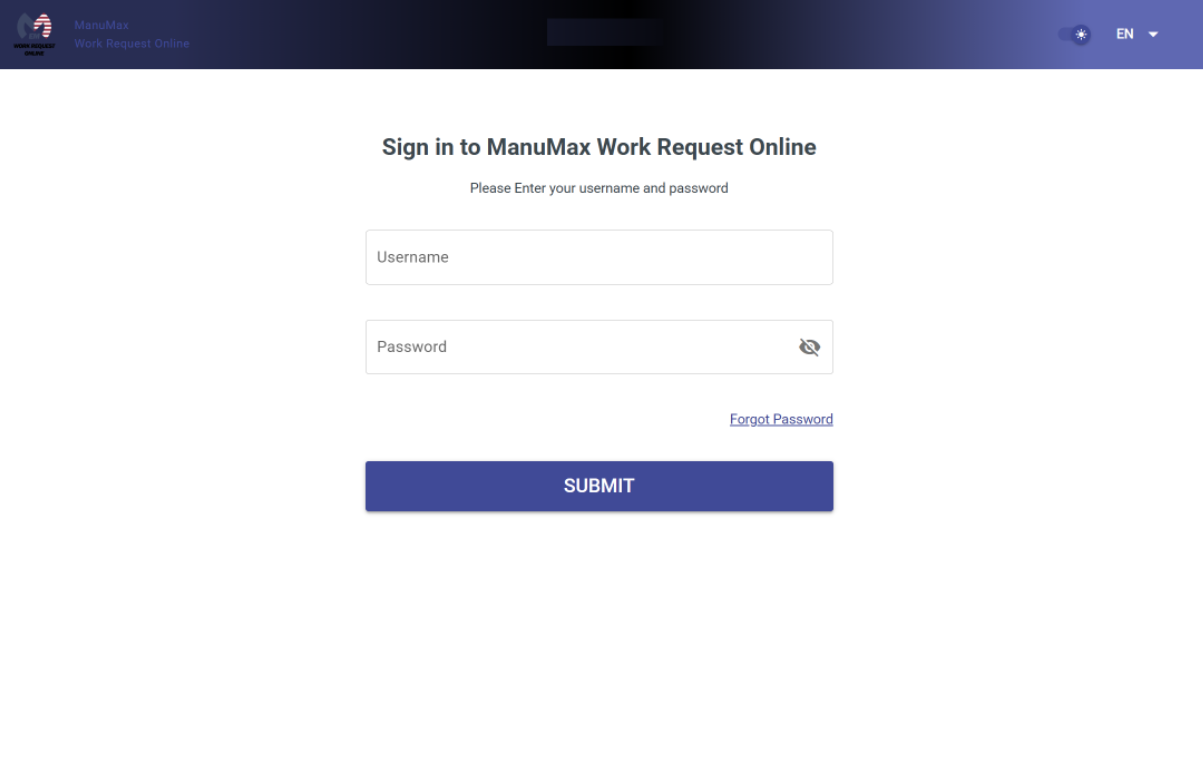
For WRO Users
- Access Work Request Online (ERO) by navigating to em.em-hosting.com in your browser.
- Log in using your email and password.
For Admins
If you’re an admin, please let us know your availability today for a quick overview of adding future users and setting up options for Mobile and WRO.
We're here to support you every step of the way. Just reach out if you have any questions or need assistance!