
Like all ManuMax users, mobile app users will need to be added to the employee table with their full name and email address.
Step 1: Add the Requester to the Employee Table in ManuMax EM
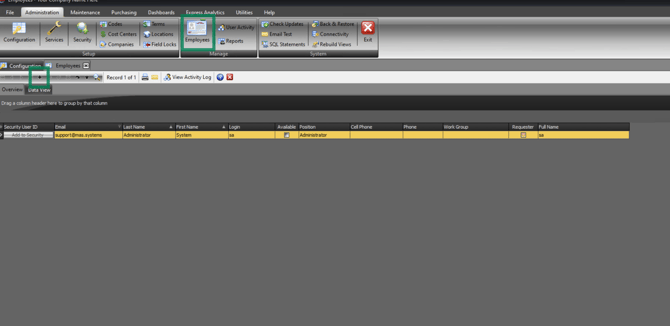
1. Click the Employees icon.
2. Click + to create a new user.
3. Enter the user’s name and email address.
4. Click Post Edit to save your changes.
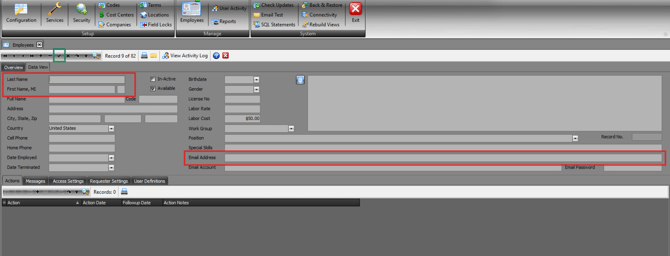
This will create the user and generate Access Records that administrators can use to define permissions.
Step 2: Configure Requester Access Settings and Site Limits
By default, all Access Settings are set to Full Access.
To modify these:
1. Right-click on each Item Title.
e.g. Administration Item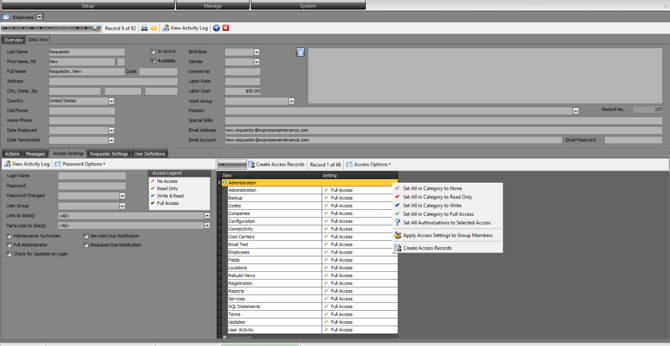
2. Select the preferred Access Type (e.g., No Access, Read Only, Write & Read, Full Access).
e.g. Administration Item set to 'No Access'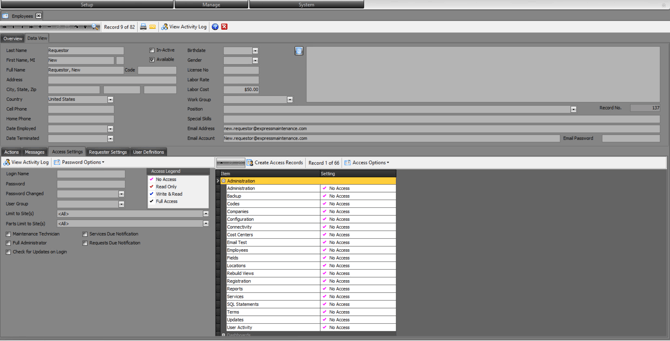
Recommended Mobile App user Settings:
-
If a technician is being set up, the Mobile App item settings are recommended to be Write & Read
-
If this is a Data Entry user, settings can be set to Write or Read Only.
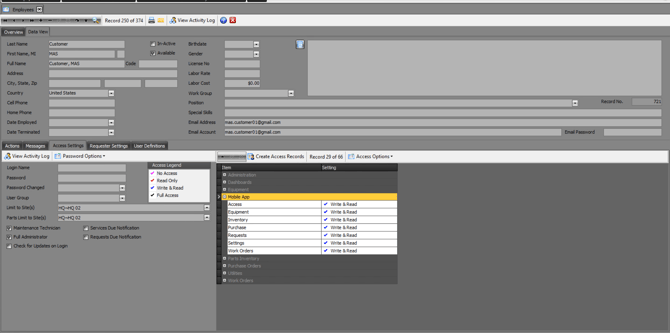
If this user will have access to ManuMax EM, please ensure their remaining access settings are correct.
Site Limits
If the user needs Site limits please apply site limits in the Access Settings tab.
Access Settings Tab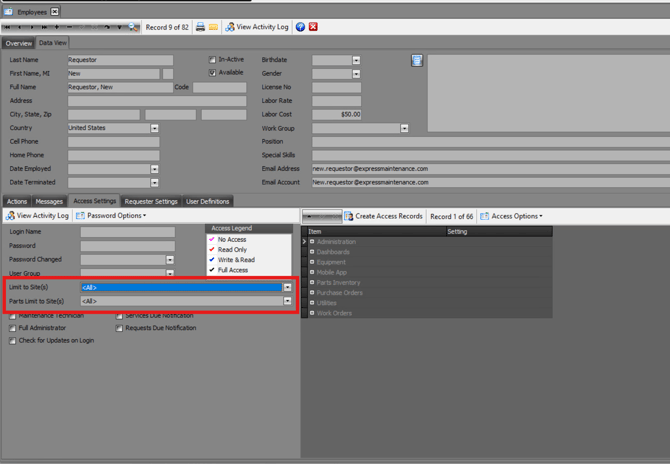
Step 3: Add the User to ManuMax Security
1.On the Overview screen, locate the new User.
2. Click Add to Security.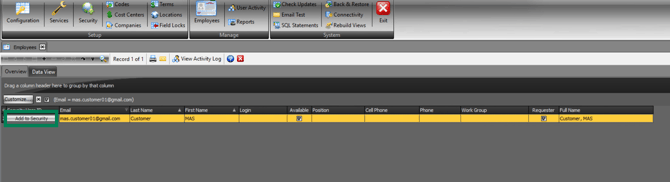
3. In the Access section, select ManuMax Mobile (EMM).
4. Set the user’s type to Technician.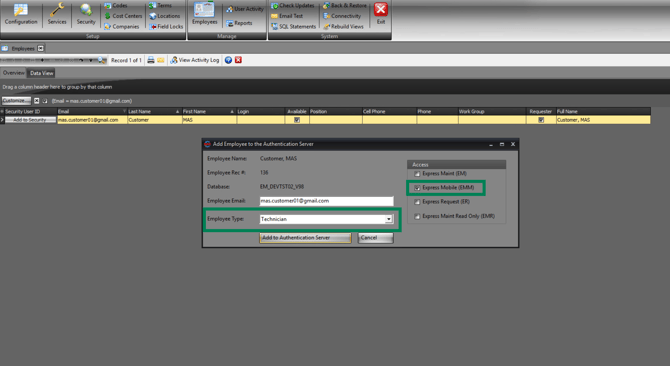
5. Click on 'Add to Authentication Server'
Once added, the user will need to set up their password to become 'Active'
Step 4: Download ManuMax Mobile
To Download ManuMax Mobile please follow the links below:
For Apple
Please visit the App Store and search for EM Mobile v2
For Android
Please visit the Google Play Store and search for EM Mobile v2
Step 5: Logging into the Mobile App
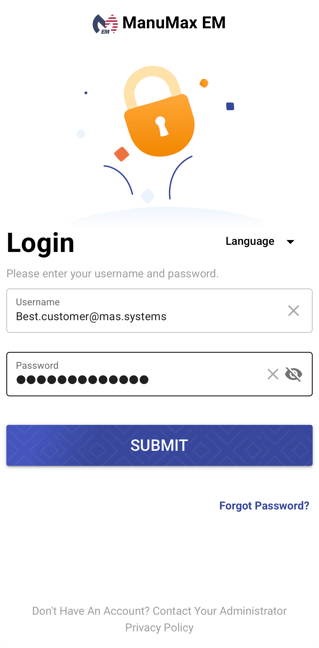
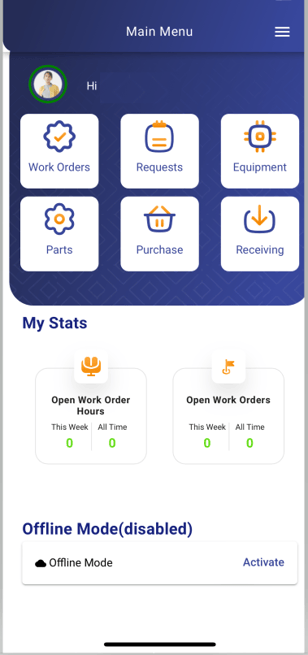
With the user now existing in the Security System and ManuMax EM they can use their newly set password and email to login to the mobile app.
If you experience issues or need additional assistance, please submit an Support Ticket. Our support team will be happy to help.