
Like all ManuMax users, requesters will need to be added to the employee table with their full name and email address.
Step 1: Add the Requester to the Employee Table
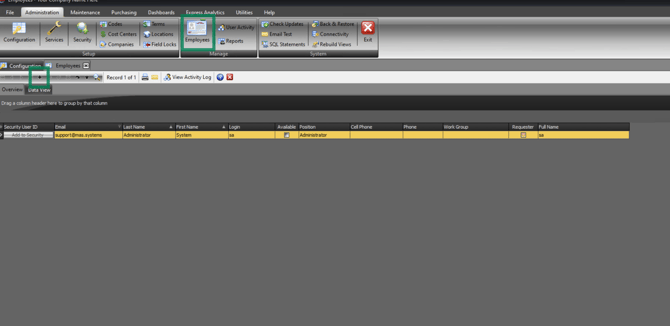
1. Click the Employees icon.
2. Click + to create a new user.
3. Enter the user’s name and email address.
4. Click Post Edit to save your changes.
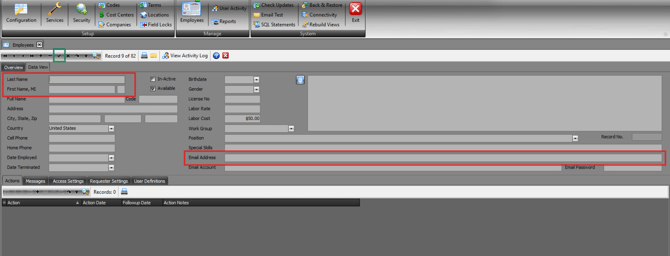
This will create the user and generate Access Records that administrators can use to define permissions.
Step 2: Configure Requester Access Settings and Site Limits
By default, all Access Settings are set to Full Access.
To modify these:
1. Right-click on each Item Title.
e.g. Administration Item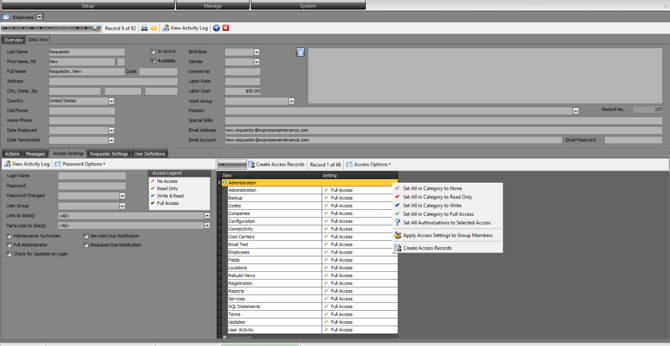
2. Select the preferred Access Type (e.g., No Access, Read Only, Write & Read, Full Access).
e.g. Administration Item set to 'No Access'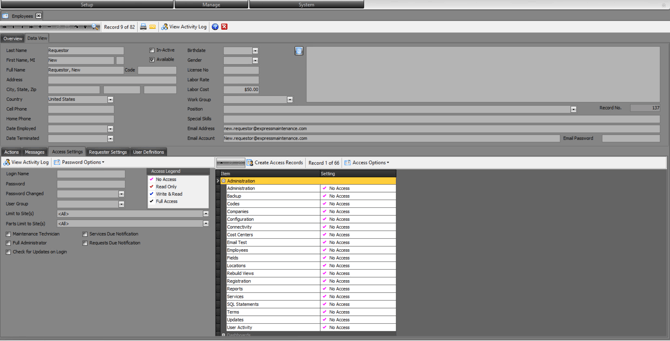
Recommended Requester Settings:
-
Only the Mobile App item should have Access, Request, and Work Orders set to Write & Read.
-
All other items can be set to None or Read Only.
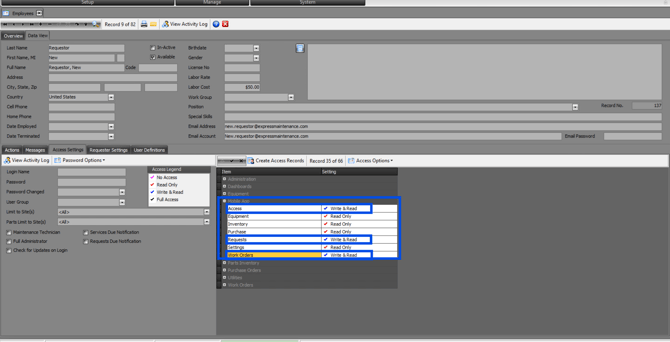
All other Access Settings can be set to None or Read Only.
Site Limits
If the requester should only see certain sites:
Apply site limits in both the Access Settings tab and the Requester Settings tab.
Access Settings Tab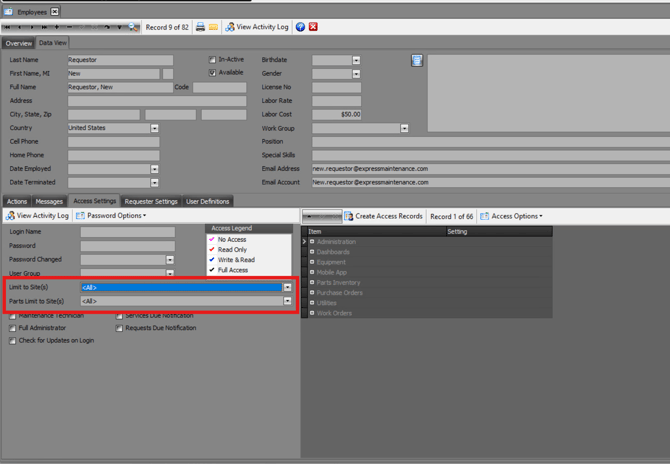
Requester Settings Tab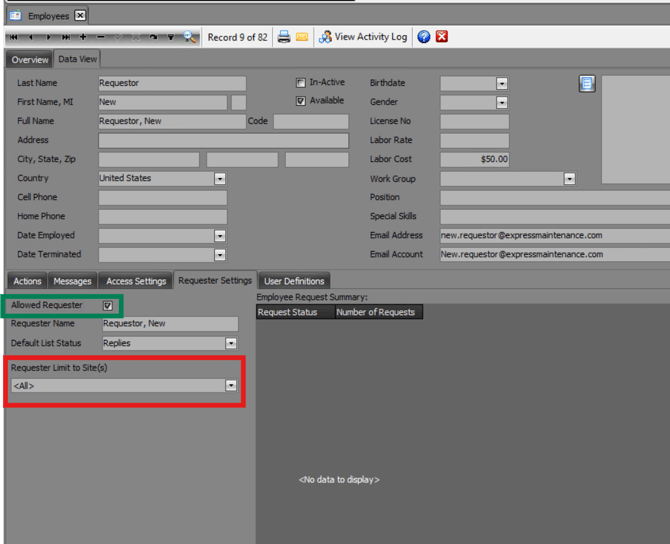
PLEASE NOTE: By default Allowed Requester will be checked off. If the user has been created before please ensure it is enabled.
Once all settings are configured, click Post Edit, then open the Overview tab.
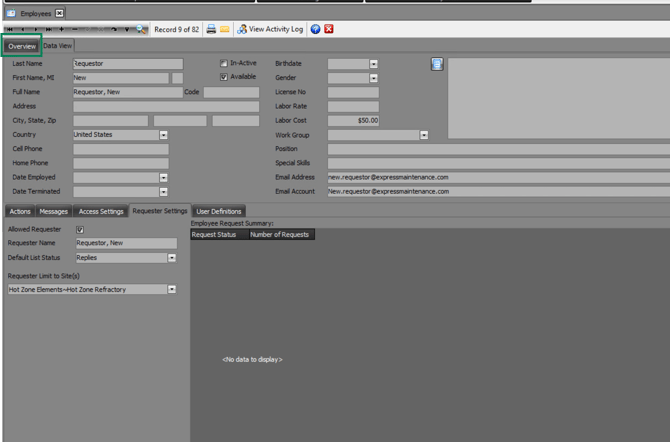
Step 3: Add the Requester to ManuMax Security
1.On the Overview screen, locate the new Requester.
2. Click Add to Security.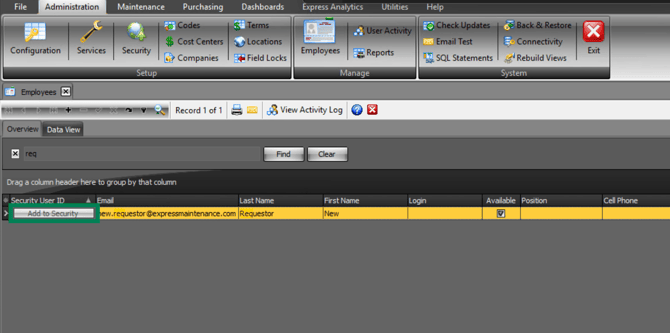
3. In the Access section, select Work Request.
4. Set the user’s type to Data Entry.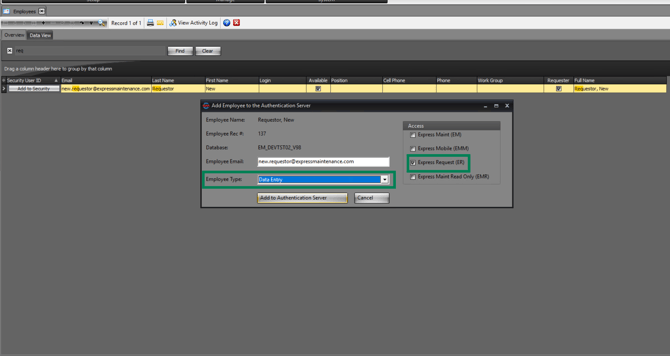
5. Click on 'Add to Authentication Server'
Once added, the requester will need to set up their password, please have them follow this guide to become 'Active'.
Step 4: Access WRO
When the requester’s status displays Active in ManuMax Security
1. Have them go to Work Request Online (WRO),
2. They can now log in and submit maintenance requests.
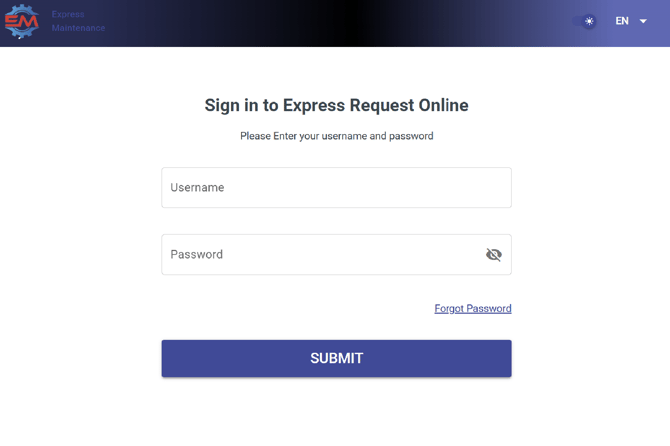
To get started with requests, see: How to get started with WRO.
Work Request Desktop
If you are wanting to download ManuMaxRequest to the user's desktop you will have to first submit an EM Support Ticket to create credentials and then download Parallel's to access the cloud environment.
Please note that ManuMax Request cloud credentials are limited to 3 cloud licenses.
After completing these steps, your requester will be fully set up with appropriate permissions and access to Work Request Online.
If you experience issues or need additional assistance, please submit an Support Ticket. Our support team will be happy to help.